
 03 August 2026
 Share
Share
1
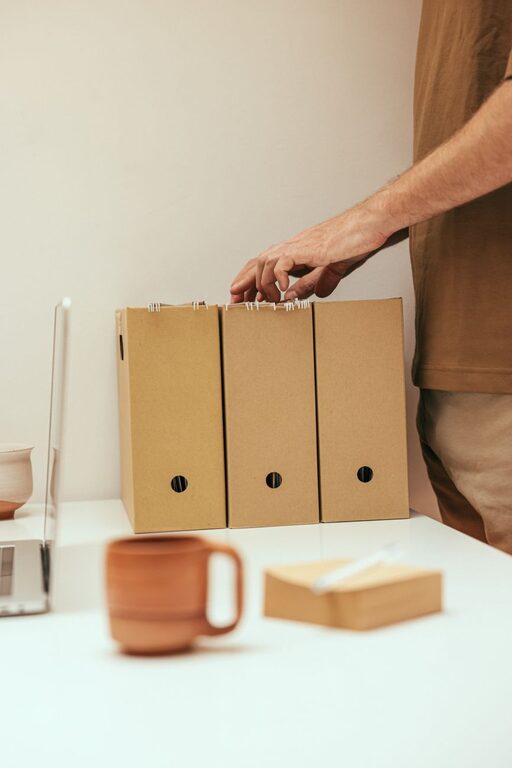
Keeping your computer files organized can save you time and reduce frustration. Whether you use your computer for work, school, or personal projects, having a clear system to manage your files makes it easier to find what you need when you need it. In this post, we’ll explore practical tips for organizing files on your computer that anyone can follow.
Organizing files isn’t just about neatness. It helps you:
– Find files quickly without wasting time searching.
– Avoid duplicate or unnecessary files that take up storage.
– Backup important data more efficiently.
– Maintain a professional digital workspace.
Before diving into organizing, take a moment to review what you have. This might include:
– Documents, spreadsheets, and presentations.
– Photos, videos, and music files.
– Downloads and installation files.
– Temporary files and duplicates.
Once you know what’s stored, you can create a better system.
Design folders and subfolders that make sense for your needs. For example:
– Work
– Projects
– Reports
– Meeting Notes
– Personal
– Photos
– Budget
– Travel Plans
Use broad categories first, then add subfolders to narrow down types or dates.
Naming your files clearly helps you know what’s inside without opening them. Include relevant details like:
– Project name
– Date (YYYY-MM-DD format works well)
– Version number if applicable (e.g., v1, v2)
For example, instead of “doc1.docx,” use “MarketingReport_2024-06-15_v2.docx.”
Set a schedule to clean up files you no longer need, such as outdated drafts or installers. This frees up space and keeps your structure uncluttered.
Most operating systems allow you to search files by name or content quickly. You can also use tags or labels on files for easier sorting and grouping.
Organizing files goes hand in hand with backing up. Use an external hard drive or cloud storage to keep copies of critical documents safe.
There are tools available that help with organizing, renaming, and backing up files automatically. Explore options that fit your workflow for added convenience.
The desktop and downloads area can get cluttered fast. Create subfolders here too, and move files into your organized system regularly.
Spend a few minutes each day or week tidying your files and folders. This keeps your system effective and prevents build-up.
– Organize by event, date, or location.
– Use photo management software for tagging and sorting.
– Delete duplicates and poor-quality images.
– Group by project or client.
– Archive completed projects separately.
– Keep templates in their folder for easy reuse.
Organizing your computer files doesn’t have to be overwhelming. By creating a simple folder structure, naming files clearly, and regularly tidying your digital space, you’ll save time and reduce stress. Start with one tip today and gradually build a system that works best for you.
Remember, the key is consistency. Happy organizing!
